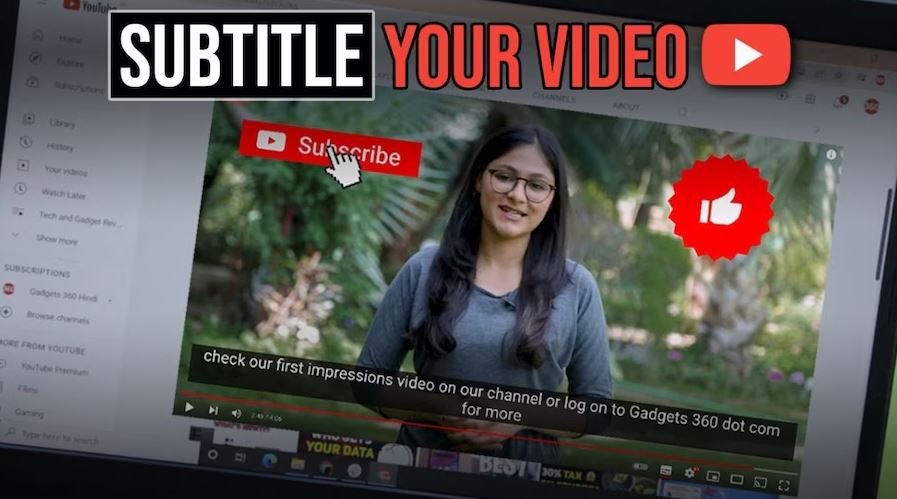
Video creators, editors, and producers often find the task of adding subtitles to YouTube videos to be quite time-consuming, particularly for lengthy content. However, the advantages of incorporating subtitles are substantial, as they enhance viewer engagement and make videos more useful. Subtitles enable your videos to reach a broader audience by accommodating speakers of different languages and ensuring accessibility for individuals with hearing impairments, as well as catering to viewers who prefer watching videos without sound.
Step-by-Step Guide
Thus, subtitles are an essential tool for effectively conveying your message. To simplify the subtitle addition process, here is an easy-to-follow, step-by-step guide for adding subtitles to your YouTube videos using a desktop. By adhering to this method, you’ll discover that the task is not as challenging as it may seem.
To add subtitles to your videos while uploading on YouTube, you must use a desktop because the YouTube Studio app for mobile does not support this feature. First, access YouTube Studio by logging into your channel. Then, initiate the video upload by clicking on the Upload Videos icon. As you progress through the upload stages, such as Details and Rights Management, you will reach the Video Elements section. Here, you can click on Add Subtitles, which will present you with three options for adding subtitles: Upload File, Auto-Sync, and Type Manually.
Several Options
When uploading subtitles to your video on YouTube, you have several options for syncing your text to the audio. If you possess a file containing the precise script of your video, the “With timing” feature allows for seamless integration with the video’s timeline. Alternatively, if your text isn’t pre-timed but needs to align with your spoken words, opt for the “Without timing” choice, whereby YouTube automatically adjusts subtitles to align with your video’s audio. The “Auto-Sync” function enables you to paste your captions, allowing YouTube to automatically match them with your video’s timing. For more control, you can “Type Manually” as you view your video, inputting and adjusting subtitles in real time. After aligning the text, review it carefully, compare it with the video, and modify timestamps if necessary to ensure accuracy.
Summary
Preview the final subtitled video and perform any last-minute edits to refine synchronization and content. Your video will include subtitles, which will be visible when published on YouTube. Viewers can easily choose to activate these subtitles based on their personal viewing preferences.
LEAD GENERATION SERVICES APPSREAD